
Claude Projects & Artifacts 101: Build Custom AI Workspaces (60+ Templates)


Stop Using Claude Like It’s Just Another Chatbot
Are you starting fresh conversations every time you open Claude? Copying the same brand guidelines over and over again? Pasting code snippets from yesterday’s chat because Claude doesn’t remember what you worked on? If you answered yes to any of these, you’re probably losing about 5 hours every single week doing repetitive work.
Here’s what most people do when they use AI: They treat it exactly like Google. They type a question, get an answer, and then close the tab. Everything vanishes into thin air. All that context disappears. All that progress gets erased. It’s honestly like hiring someone incredibly smart and talented to help you with your work, but then letting them go at 5 PM every single day and bringing in someone completely new the next morning who knows absolutely nothing about you, your business, your style, or what you’re trying to accomplish.
Sound frustrating? That’s because it is incredibly frustrating. And it’s also completely unnecessary. But here’s the really good news: You can change this entire situation starting right now, today.
Claude has two powerful features called Projects and Artifacts that completely change the game. These aren’t just small improvements—they fundamentally transform how you work with AI. Instead of just chatting back and forth endlessly, you can actually build real things. You create a permanent workspace where Claude remembers your writing style, stores all your important files, and shows you visual results instantly instead of just walls of text.
This guide will walk you through absolutely everything you need to know. By the end of reading this, you’ll go from being someone who uses AI occasionally for random questions to someone who uses it like a true professional every single day.
🏗️ The Real Problem: Why AI Feels So Repetitive
Ever notice how using AI can feel exactly like that movie Groundhog Day where everything repeats?
Every single chat starts from absolute zero. Even the smartest AI models available today—and we’re talking about really advanced technology here—forget everything from your last conversation. It doesn’t matter if you had an amazing three-hour session yesterday where you accomplished tons of work. Today, it’s like you never met before. This creates some very real, very frustrating problems for anyone trying to get serious work done:
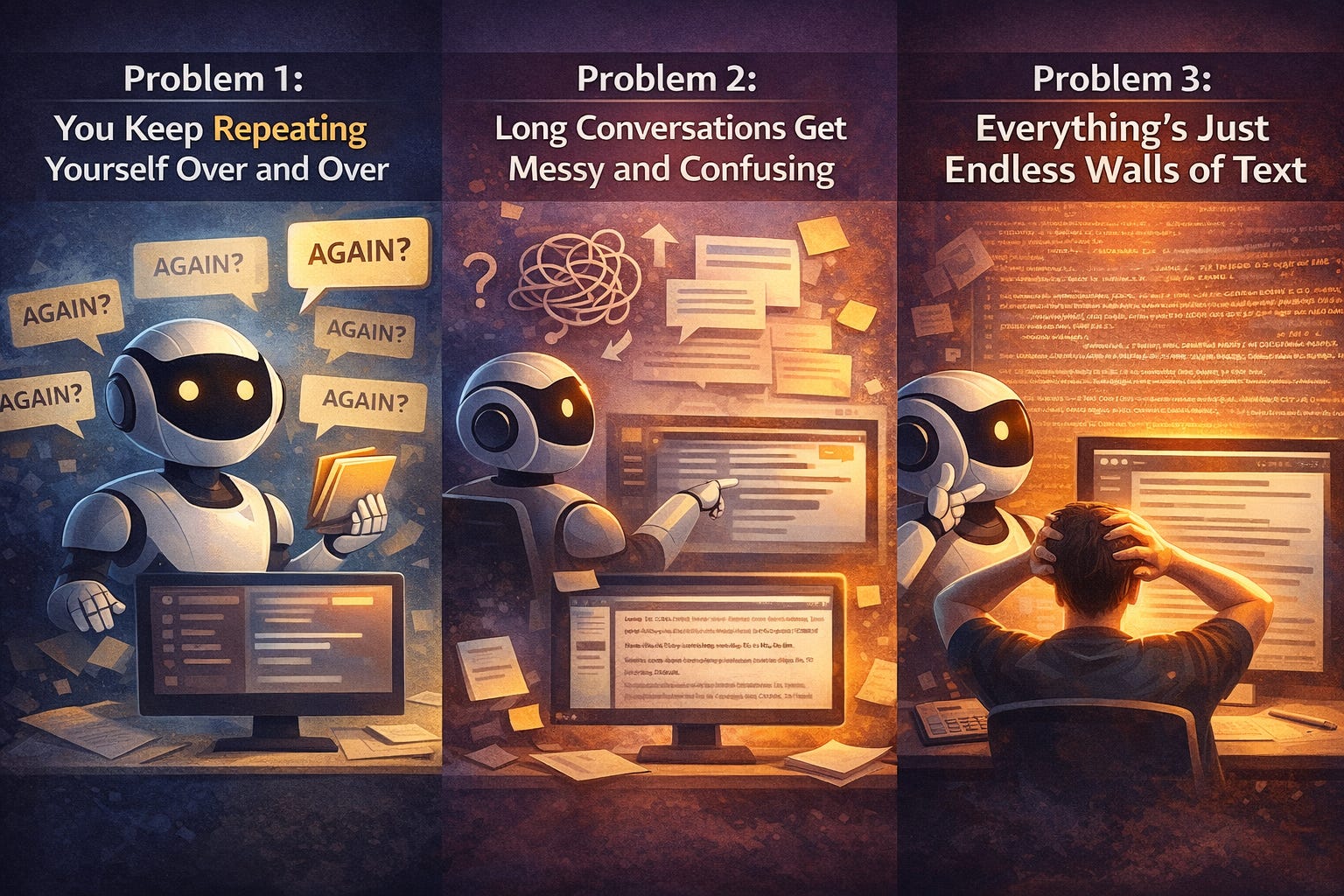
Problem 1: You Keep Repeating Yourself Over and Over Every single time you start a new chat, you have to explain your writing style from scratch. You describe your project goals again for the tenth time. You tell it what format you need. You explain who your audience is. You clarify what tone you want. It’s exhausting and it wastes so much of your valuable time that could be spent on actual productive work.
Problem 2: Long Conversations Get Messy and Confusing After you’ve sent maybe 20 or 30 messages back and forth in one conversation, something strange starts happening. The AI starts losing track of things. It begins forgetting what you talked about at the very beginning of the chat. Context gets lost somewhere in the middle. You have to scroll up and remind it what you said earlier. The whole experience becomes clunky and inefficient.
Problem 3: Everything’s Just Endless Walls of Text You ask for a website design and what do you get? A massive wall of code dumped right into the chat window. You can’t actually see what it looks like. You can’t test it. You can’t interact with it. You just stare at hundreds of lines of text and try to imagine what it might look like when it’s actually running. It’s not a great experience, especially if you’re not a programmer.
Claude solved all three of these major problems with two surprisingly simple but incredibly powerful tools:
Projects = The long-term memory system (stores all your files and remembers all your preferences permanently)
Artifacts = The visual workspace (shows you actual working documents, functional apps, and real designs you can see and interact with)
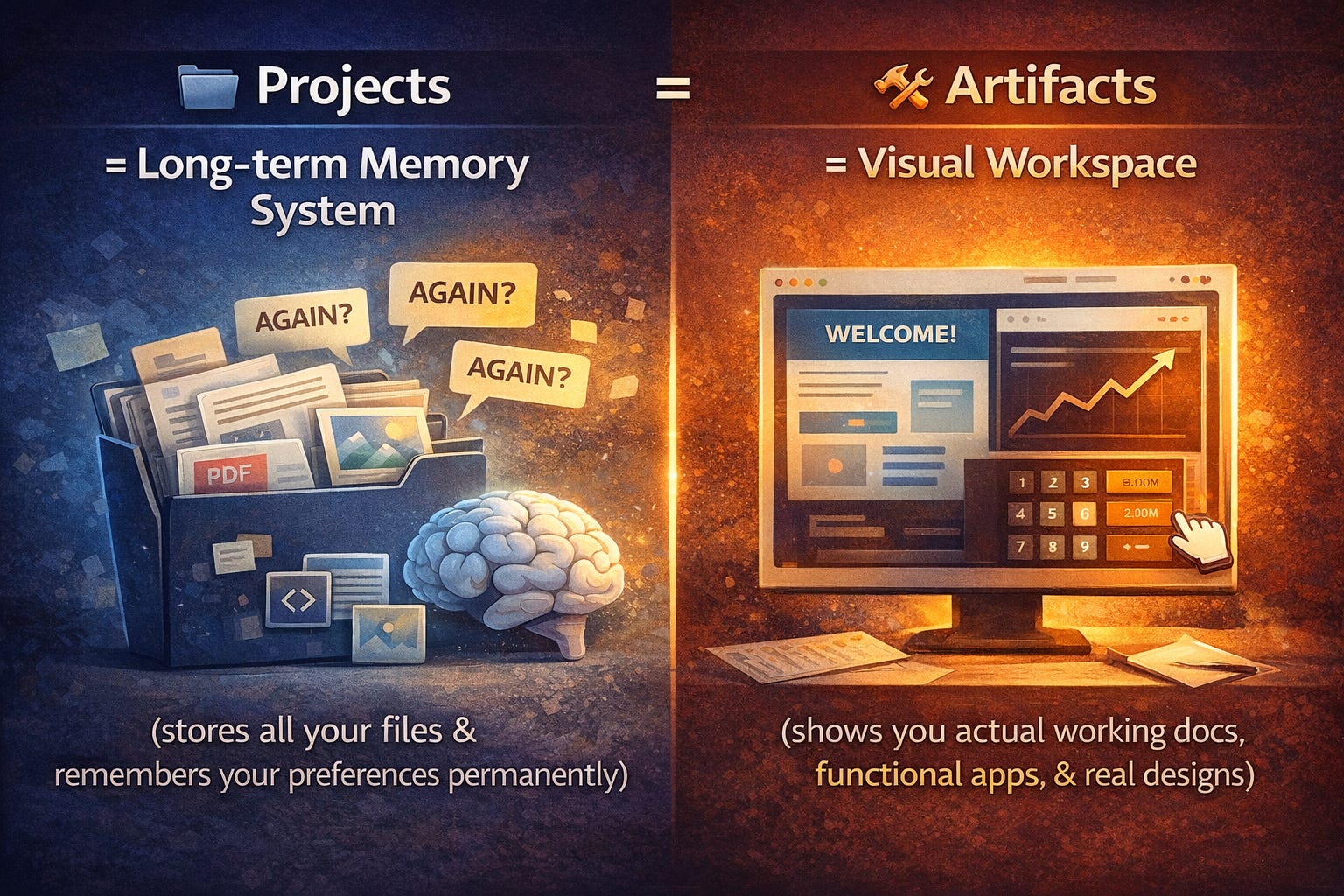
Let me show you exactly how they work together and why this matters so much for your daily workflow.
🧠 Part 1: Understanding Claude Projects (The Brain)
Think of a Project as your own dedicated room in a big office building.
Instead of having one giant, messy conversation where you randomly jump between discussing dinner recipes, getting coding help, drafting work emails, and everything else all mixed together in one confusing thread, a Project keeps everything beautifully organized. It’s like a container or a folder that holds your files, your specific instructions, and all your conversations about one particular topic or area of your work.
This separation makes a huge difference. When you want to work on your marketing content, you open that Project. When you want to code, you open your coding Project. Each one has its own personality, its own knowledge base, and its own memory. They don’t get mixed up with each other.
The Three Things Every Good Project Needs
Want your Project to actually work well and give you great results? You absolutely need all three of these pieces working together. If you skip even one, the whole thing won’t work nearly as well:
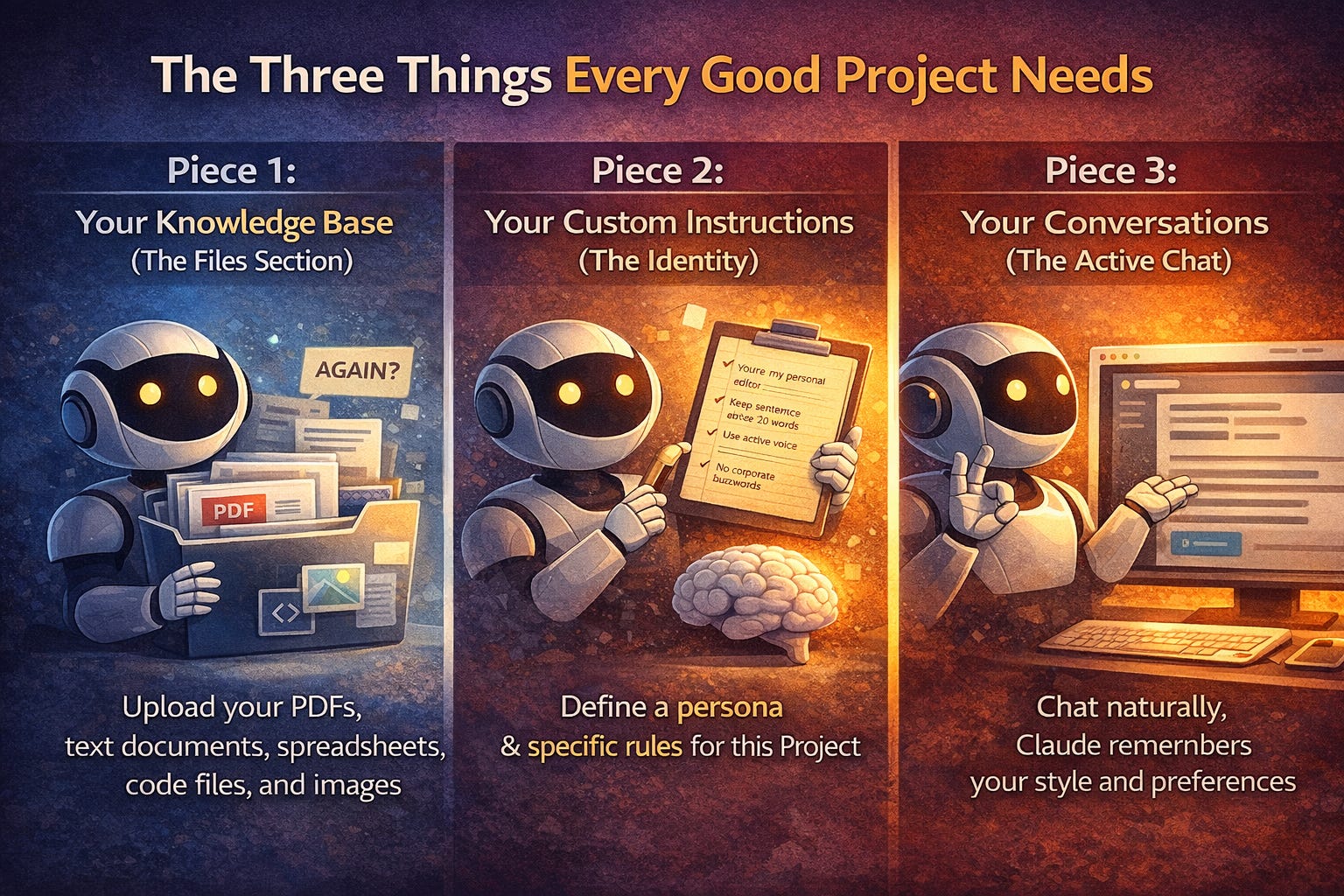
Piece 1: Your Knowledge Base (The Files Section) This is where you upload all the files that Claude needs to know about for this specific Project. You can upload PDFs, text documents, spreadsheets, code files, images—basically whatever Claude needs to understand your work and your style.
Here’s what makes this powerful:
You can upload the equivalent of up to 500 pages worth of content in total
Claude automatically reads absolutely everything you upload before it answers your very first question
This means it already knows your style, your preferences, your past work, and your standards before you even start talking
Think about that for a second. Instead of explaining your brand voice every single time, you just upload three of your best blog posts once. Done. Claude knows your style forever in that Project.
Piece 2: Your Custom Instructions (The Identity) This is where you tell Claude exactly how to act within this specific Project. You’re essentially giving it a role, a personality, and a set of rules to follow every single time you chat in this Project.
Here’s an example that shows how specific you can get:
“You’re my personal editor. Keep all sentences under 20 words. Use active voice. Never use corporate buzzwords like ‘synergy’ or ‘leverage.’ Be direct and conversational. If something sounds boring, call it out immediately.”
See how specific that is? That’s the kind of instruction that makes Projects powerful. You’re not just saying “help me write.” You’re creating a specific persona that knows exactly what you want.
Piece 3: Your Conversations (The Active Chat) This is where you actually talk to Claude and get work done. But here’s the beautiful part that makes this whole system work: Because you already set up pieces 1 and 2 ahead of time, you don’t need to waste any time explaining everything each time you start chatting.
You can just say something super simple like “Review this draft” or “Make this funnier” and Claude already knows:
Your writing style (from the uploaded files)
Your preferences (from the custom instructions)
What good looks like (from your examples)
It’s like working with a colleague who’s been on your team for years instead of explaining everything to a new person every single day.
How to set up a Claude Project
Goal: Create one “Life Hub” project any general user can rely on every day.
Step 1 – Create your project
Go to claude.ai and click Projects in the left sidebar.
Click “New project” (top right).
Name it something simple and obvious like “Life Hub Assistant” or “Personal Helper”.
Step 2 – Add a small personal knowledge base
In the project view:
Find the Project knowledge / Knowledge base area on the right.
Click “+ Add content / Upload files”.
Upload 3–6 focused files, for example:
A short “About me” note (who you are, work, interests, goals).
3–5 emails, posts, or docs that sound like “you” so it can learn your tone.
Any recurring templates you actually use (simple budget, packing list, weekly routine).
Guidelines for normal users:
Skip clutter; quality beats quantity.
Remove or redact anything sensitive (passwords, card numbers, SSNs).
Step 3 – Set project instructions (the “persona”)
Still inside the project:
Click “Set project instructions”.
Paste this as a general‑user default and tweak as needed:
You are my personal Life Hub assistant.
Help me with everyday writing (emails, texts, posts), planning (weeks, trips, budgets, events), and simple decisions.
Use a friendly, clear tone and keep answers short by default unless I ask for more detail.
Match my style based on the examples in the project knowledge.
When I’m unsure what to do, give me 2–3 options and clearly recommend one “default” choice.
Click Save. These instructions now apply to every chat inside this project.
Step 4 – Use it as your default workspace
From now on, start new chats inside “Life Hub Assistant”, not in a random global chat.
Examples of everyday tasks:
“Rewrite this message so it’s kind but firm:” + paste text.
“Plan my week: I work 9–5, want 3 workouts, and one social event.”
“Help me draft a short, friendly email to my landlord about a repair.”
Because the project has your files + instructions, Claude responds in a way that feels consistently “you” without you re‑explaining context every time.
