
Wispr Flow 101: The Complete Guide to Voice-First Productivity + 50 Use Cases & Custom Setups

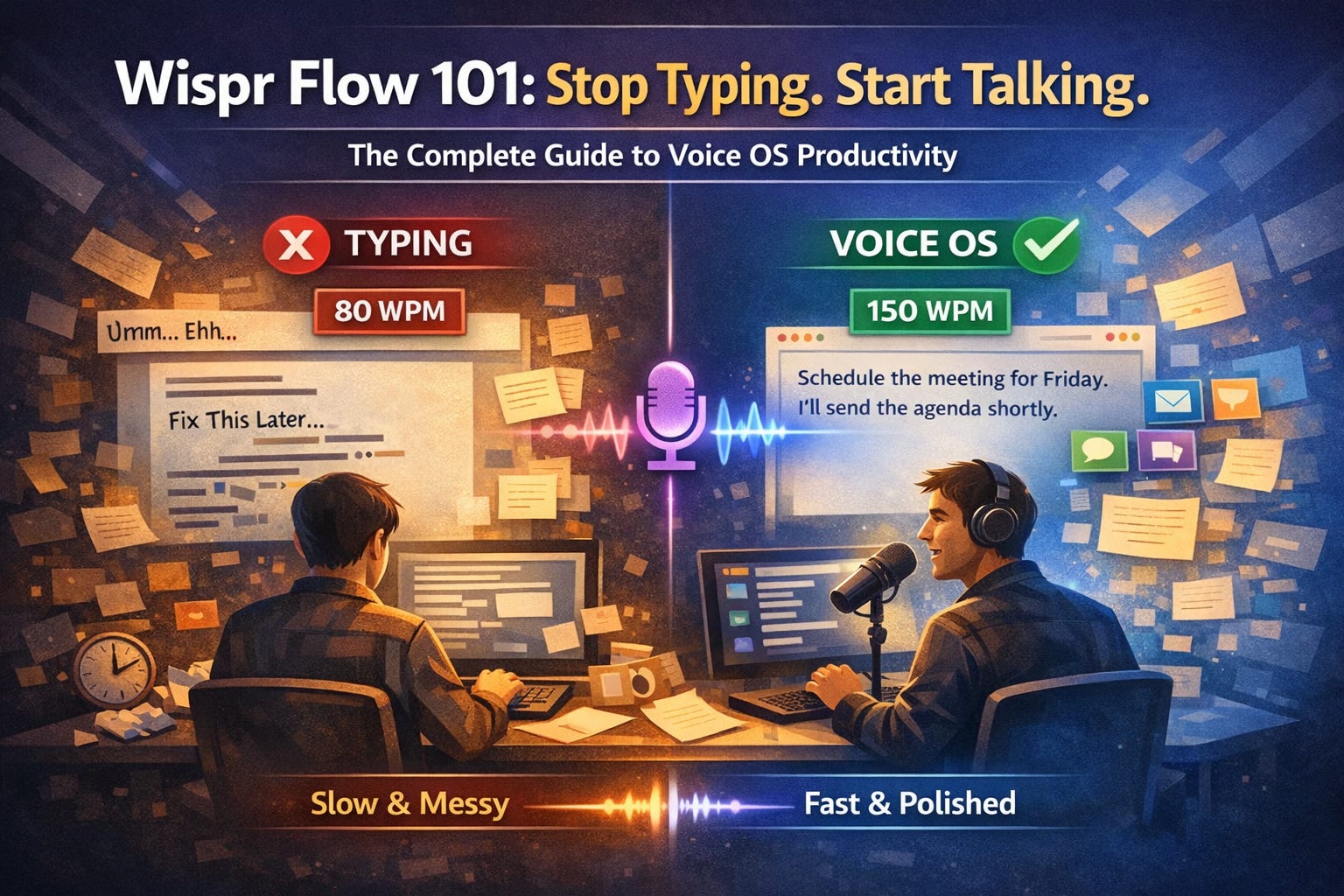
I type around 80 words per minute. I always thought that was fast.
Then I started speaking at 150.
That’s not a typo. Wispr Flow turned my voice into my keyboard — across every app on my Mac, Windows, and iPhone. Emails. Slack. Claude. Cursor. Google Docs. Even ChatGPT while driving. I’ve dictated hundreds of thousands of words at this point, and I’m not going back.
Here’s the thing most people miss: Wispr Flow isn’t just a “dictation app.” It’s an AI writing layer that sits on top of your entire operating system. It understands which app you’re in, adjusts tone automatically, strips your “ums” and “ahs,” and turns messy spoken thoughts into polished, formatted text.
In this guide, I’ll walk you through everything: setup, every feature worth knowing, the customizations that unlock real power, and 50 use cases organized by how you actually work.
Let’s get you voice-pilled.
═══════════════════════════════════════════════════
PART 1: THE 101 GUIDE
═══════════════════════════════════════════════════
🤔 The Problem with How You Type Today
Let me paint the picture.
You’re staring at a blank email. You know exactly what you want to say. But the words don’t come out the same way when your fingers hit the keyboard.
You type a sentence. Delete half of it. Retype. Get distracted by a Slack notification. Come back. Forget your train of thought.
Three minutes later, you’ve written two sentences.
Now multiply that across every email, Slack message, PRD, document, and ChatGPT prompt you write in a day.
Here’s the math: most people type 40-80 words per minute. Most people speak 120-150 words per minute. That’s a 3-4x speed gap — and it compounds across everything you do.
Your phone’s built-in dictation? It’s better than nothing. But it’s dumb. It transcribes word-for-word. Every “um,” every “actually wait,” every mid-sentence correction — all there. You spend 5 minutes dictating and 10 minutes cleaning it up.
That’s the edit tax. And it erases every speed advantage dictation should give you.
Wispr Flow eliminates the edit tax entirely.
🧠 What Is Wispr Flow (And Why Should You Care?)
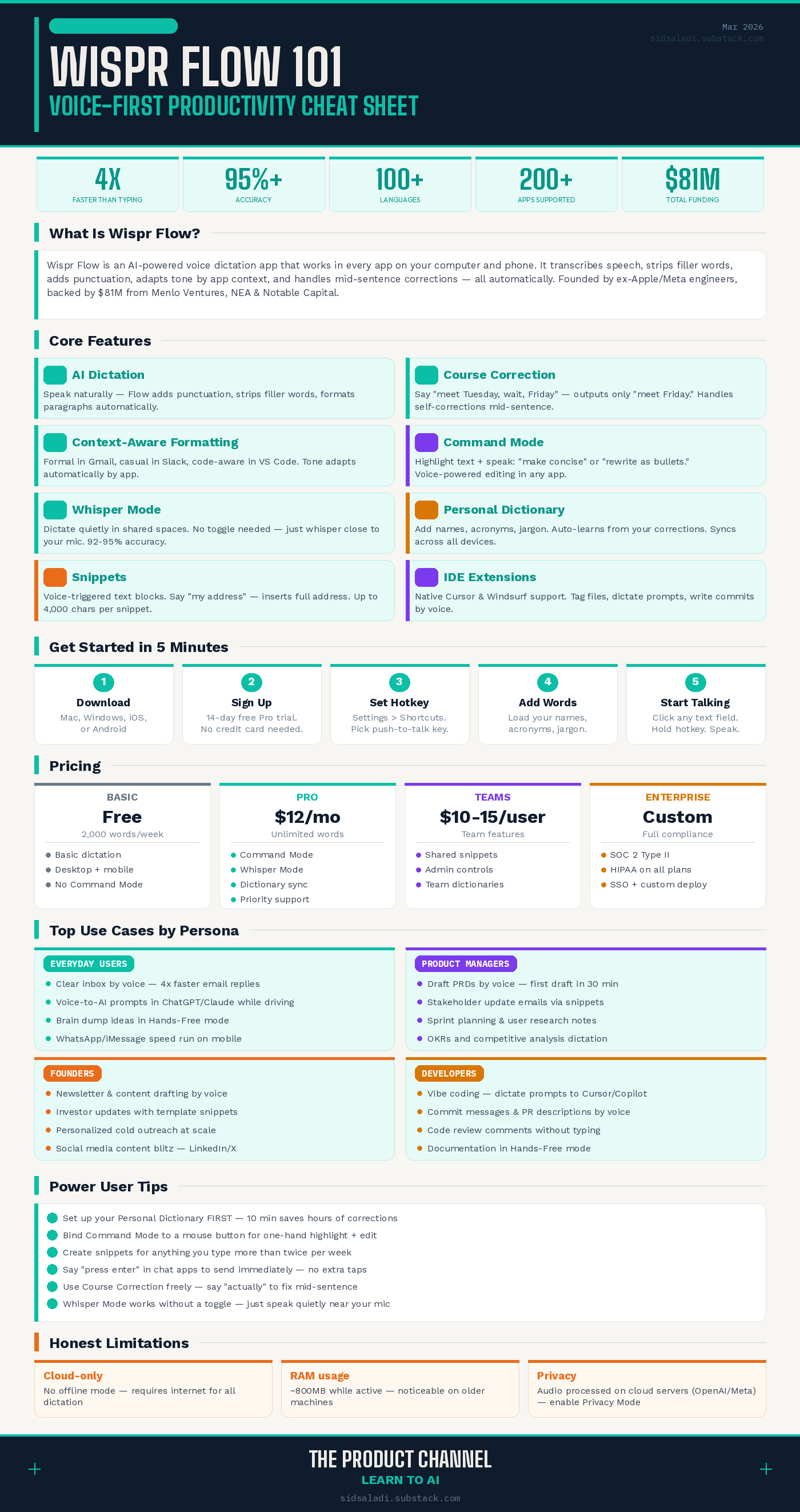
Wispr Flow is an AI-powered voice dictation app that works in every app on your computer and phone.
But calling it “dictation” undersells it. Here’s what it actually does:
Transcribes your speech at 95%+ accuracy
Strips filler words (”um,” “uh,” “like”) automatically
Adds punctuation — periods, commas, capitalization — without you saying “period”
Handles self-corrections — say “let’s meet Tuesday, wait no, Friday” and it outputs “Let’s meet Friday”
Adapts tone by app — formal in Gmail, casual in Slack, code-aware in VS Code
Edits text with voice commands — highlight text and say “make this more concise”
The company was founded in 2021 by Tanay Kothari and Sahaj Garg (ex-Apple and Meta engineers) in San Francisco. They’ve raised $81M total from Menlo Ventures, NEA, Notable Capital, 8VC, and Steven Bartlett’s Flight Fund. They’re growing at 40% month-over-month and have reached 270 Fortune 500 companies.
This isn’t a side project. They’re building what they call the “Voice OS” — a voice-native computing layer designed to make speech the primary way people interact with technology.
And after months of daily use? I believe them.
Now I cant stop using whisper flow

⚡ Getting Started: Setup in 5 Minutes
Download
Mac / Windows: wisprflow.ai/download
iPhone / iPad: Search “Wispr Flow” on the App Store
Android: Launched February 2026 — available on Play Store (free unlimited dictation during launch)
Create Your Account
Sign up with email. Every new account gets a 14-day free trial of Flow Pro — no credit card required..
First-Time Setup Checklist
Set your hotkey — Go to Settings → Shortcuts. Default is hold
Fn(Mac) or a custom combo. I useOption + Space.Choose push-to-talk or hands-free — Push-to-talk: hold key, speak, release. Hands-free: double-tap to start/stop.
Test your mic — Settings → Audio. Make sure it’s picking up your voice clearly.
Enable Context Awareness — Settings → Data and Privacy. This lets Flow read which app you’re in to format appropriately.
Start talking. Click into any text field. Hold your hotkey. Speak. Release. Done.
That’s it. You’re up and running.
🔧 Core Features Walkthrough
Let me walk you through the features that actually matter — from basic to power-user.
1. AI-Powered Dictation (The Core)
The main event. Hold your hotkey, speak naturally, release.
Flow doesn’t just transcribe — it interprets. It adds punctuation, capitalizes properly, creates paragraphs, and strips filler words. You don’t need to say “period” or “new line.” Just talk like you’re explaining something to a colleague.
Course Correction is the killer sub-feature here. Say: “We should budget 50K for this, actually, make that 75K.” Flow outputs: “We should budget 75K for this.” It catches “actually,” “wait,” “no,” “I mean” — and only outputs your final thought.
2. Context-Aware Formatting
Flow detects which app you’re typing in and adjusts:
Gmail / Outlook → Professional tone, proper email formatting
Slack / Messages → Casual, conversational
Google Docs / Notion → Structured paragraphs, headings
VS Code / Cursor → Code-syntax-aware, recognizes variable names
This happens automatically. No configuration needed. It’s one of those features that feels like magic the first time you see it.
3. Command Mode (Pro Feature)
This turns Flow from a dictation tool into a voice-powered editor.
How it works:
Highlight any text in any app
Press your Command Mode shortcut (set in Settings → Shortcuts)
Speak your command: “Make this more concise” or “Turn this into bullet points” or “Rewrite in a friendlier tone”
Release. Flow replaces the highlighted text with the edited version.
No text highlighted? Command Mode opens Perplexity in your browser with your spoken question. Say “What’s the current price of Tesla stock?” — it searches for you.
You can also use highlighted text as context for your question. Highlight a paragraph, activate Command Mode, and say “Summarize this in one sentence.”
4. Whisper Mode
Working in a coffee shop? Open office? Shared space?
Wispr Flow recognizes whispered speech. No special toggle needed — just speak quietly, close to your mic. Accuracy drops slightly (92-95% vs 97%+ at normal volume), but it works.
No other major dictation tool does this.
5. Personal Dictionary
Go to Settings → Personalization → Dictionary.
Add every name, acronym, and term that’s specific to your work:
Company names (Google, Apple)
People’s names (Rob, Sam etc.)
Product names (Siri, Maps)
Technical terms (OAuth, webhook, API endpoint)
Auto-add to Dictionary: If you correct a transcription by typing over it, Flow notices and adds the corrected spelling automatically. Over time, it learns your vocabulary without you lifting a finger.
6. Snippets (Voice Shortcuts)
Snippets are voice-triggered text blocks. Say a trigger phrase, and Flow inserts pre-written text.
Go to: App → Snippets → Add New
Trigger Phrase What Gets Inserted “my email address” sid@example.com “my calendar link” Feel free to book a time: [Calendly URL] “standard disclaimer” [Full legal disclaimer paragraph] “bug report template” Bug: [description]\nSteps: 1.\nExpected: \nActual:
Triggers can be up to 60 characters. Expansion text up to 4,000 characters.
Team snippets (on Team/Business plans): Admins create shared snippets visible to everyone. Great for company address, standard disclaimers, team signatures.
7. Hands-Free Mode
For longer dictation sessions — writing docs, brain dumps, journal entries.
Double-tap your hotkey to toggle on. Speak as long as you want. Double-tap again to stop. No need to hold anything down.
8. “Press Enter” Command
Say “press enter” at the end of any dictation, and Flow sends your text + hits Enter. Perfect for chat apps where you want to fire off a message immediately.
Works in Slack, Messages, WhatsApp — anywhere Enter submits.
9. Multi-Language Support
Flow supports 100+ languages and can auto-detect language switches mid-sentence. If you work bilingually, it handles the transitions.
They even built a dedicated Hinglish model (Hindi + English mix) for mixed-code speakers.
10. IDE Extensions (For Developers)
Flow has dedicated extensions for Cursor and Windsurf that go beyond basic dictation:
Tag and reference specific files by voice
Dictate natural-language instructions to AI coding assistants
Write commit messages, PR descriptions, and code comments
Recognize camelCase, snake_case, and technical syntax
If you’re into vibe coding, Flow is the missing piece.
📚 Dive Deeper: AI Tools & Productivity
═══════════════════════════════════════════════════
PART 2: 50 USE CASES & CUSTOM SETUPS
═══════════════════════════════════════════════════
Here’s where the real value is.
I’ve organized these by who you are and what you’re doing — not generic “dictation tips.” Each use case includes the setup, the workflow, and customization instructions so you can replicate it immediately.
🧑💻 FOR EVERYDAY AI USERS
Category A: Email & Communication
Use Case #1: Inbox Zero by Voice
